
An entry filter determines whether a qualifying signal becomes a hypothetical trade. In Target & Stop Lab, choose a starting setup and trade side, then open Simulation settings → Entry timing and filters. Strategy Hypothesis offers the same settings under Edit setup.
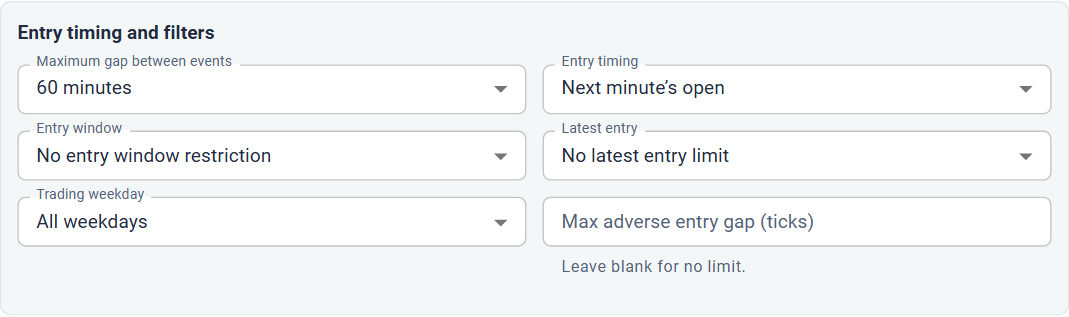
| Setting | Effect |
|---|---|
| Maximum gap between events | Limits the time between trigger steps. It acts before the simulated entry. |
| Entry timing | Next minute’s open uses the first minute open after the final trigger. Wait one extra minute uses the open two minutes after it. A missing required entry bar can leave the signal unfilled. |
| Entry window | Restricts entries to the selected part of the market session. The second hour starts exactly 60 minutes after the open and ends before minute 120. |
| Latest entry | Requires the fill to occur at least the selected number of minutes before that day’s session close. A verified shortened session uses its earlier close. |
| Trading weekday | Selects the market calendar’s trading date. For an overnight session, that can differ from the calendar date on which the trigger occurred. |
| Max adverse entry gap (ticks) | Compares the entry bar’s open with the final trigger bar’s close before slippage. A higher open is adverse for a long. A lower open is adverse for a short. Leave the field blank for no limit. |
With a 16:00 session close and a latest-entry limit of 15 minutes, a 15:45 fill qualifies. If an extra minute of delay moves the fill to 15:46, the signal misses the cutoff. With a two-tick adverse-gap limit, exactly two adverse ticks qualify and three do not.
After running the study, compare qualifying signals with hypothetical entries. Read the reasons for unfilled signals before interpreting a change in the target-first rate.